Quick version: turn Motion Blur Strength down to 0 to 2, switch Camera Shake off, lower Camera Bob to 0 to 2, and turn your TV’s motion smoothing off.
GTA 6 runs at 30 frames per second on every console: PS5, PS5 Pro, Xbox Series X and Series S. There’s no performance or quality mode, so you can’t switch to 60fps. That makes the settings below even more important, because they make 30fps feel a lot smoother and clearer.
Change these before your first mission
| Setting | Where | Change to | Why |
|---|---|---|---|
| Motion Blur Strength | Display | 0 to 2 (default 3) | Sharper image when driving and turning |
| Camera Shake | Camera → Comfort | Off | Less wobble in chases and gunfights |
| Camera Bob | Camera → Comfort | 0 to 2 (default 10) | Much less bounce when walking and running |
| Cinematic Vehicle Crash Frequency | Camera → Cinematic | 0 or 1 | Stops slow-motion crash cams interrupting you |
| Subtitles | Accessibility | On, larger, with background | Easier to follow dialogue while driving |
| Minimap | Display | Always on | Easier navigation |
Motion blur: 0 or 2?
Turning motion blur off doesn’t increase the frame rate. It only changes how sharp things look. At 0 you get the cleanest picture, but fast camera turns can look a bit juddery at 30fps. If that bothers you, try 1 or 2. A good test: drive down a busy road, swing the camera sideways, and compare 0 with 3.
Best controller settings
| Setting | Change to | Why |
|---|---|---|
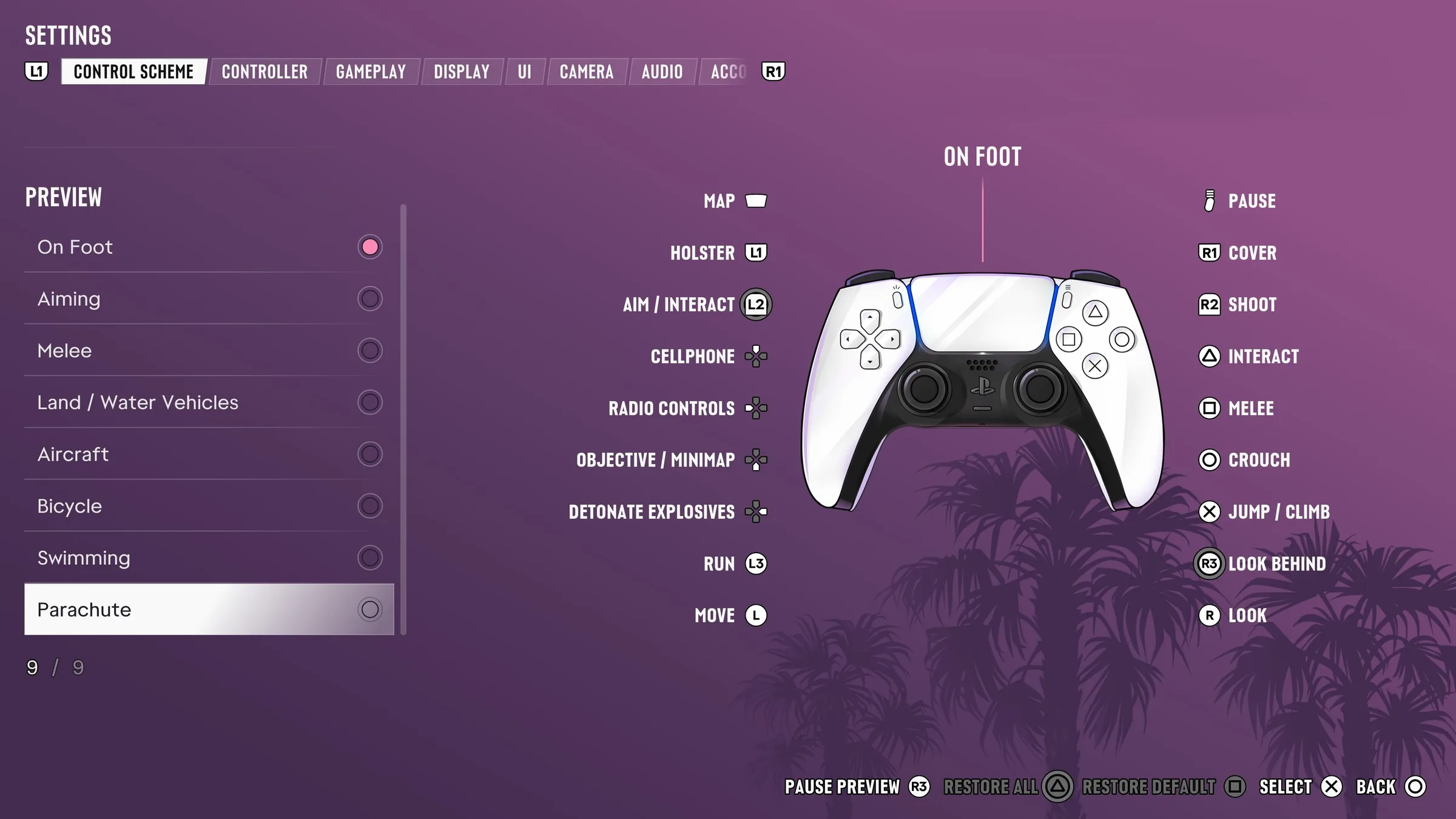
| Control Scheme | Classic (if you’re coming from GTA 5) | Puts sprint back on X / A |
| Look / Aim Sensitivity | Up from 7 towards 8–10 | The default camera can feel slow |
| Targeting | Partial | Helps at 30fps without full lock-on |
| Aim Assist Strength | Around 3 | A good middle ground |
| Stand & Sprint | Off | Stops you popping out of stealth by accident |
| Stick Deadzones | 2 to 3 | Raise by 1 if your camera drifts on its own |
Best camera settings for driving
- Camera Height (vehicles): High, so you can see further over traffic.
- Follow speed: around 8 for a camera that keeps up in chases.
- Camera Height (on foot): Medium.
HDR and your TV
- Set up HDR on your console first (PS5: Settings → Screen and Video; Xbox: Settings → TV & display), then use the game’s own HDR calibration.
- Turn off motion smoothing on your TV. It’s called things like TruMotion, Motionflow or Auto Motion Plus, and it adds lag and odd artefacts.
- Switch on your TV’s Game mode to cut input lag.
- Night scenes too dark? Raise the in-game brightness a step rather than cranking your TV’s brightness.
Shopping for a new screen? See our best TVs and monitors for GTA 6.
Feel sick or dizzy?
Some players feel queasy with the default camera. Turn motion blur down, switch Camera Shake off, set Camera Bob to 0, and take regular breaks.
Streaming or recording?
Turn on Mute Licensed Music to avoid copyright strikes on Twitch and YouTube.
Found settings that work even better? Tell us in the comments. And once your settings are sorted, check out our 15 tips we wish we’d known and how to make money fast.
Sources: setting names, defaults and recommendations reported by Dexerto, OutputLag, Beebom, Stealthy Gaming, FDayTalk, LagZapper and GamerBolt, checked against each other. Menu names may differ slightly after updates. Correct on 20 November 2026.